Block or unblock specific callers
Use a call-history action for a particular number and keep this separate from Advanced Safe Call Mode.
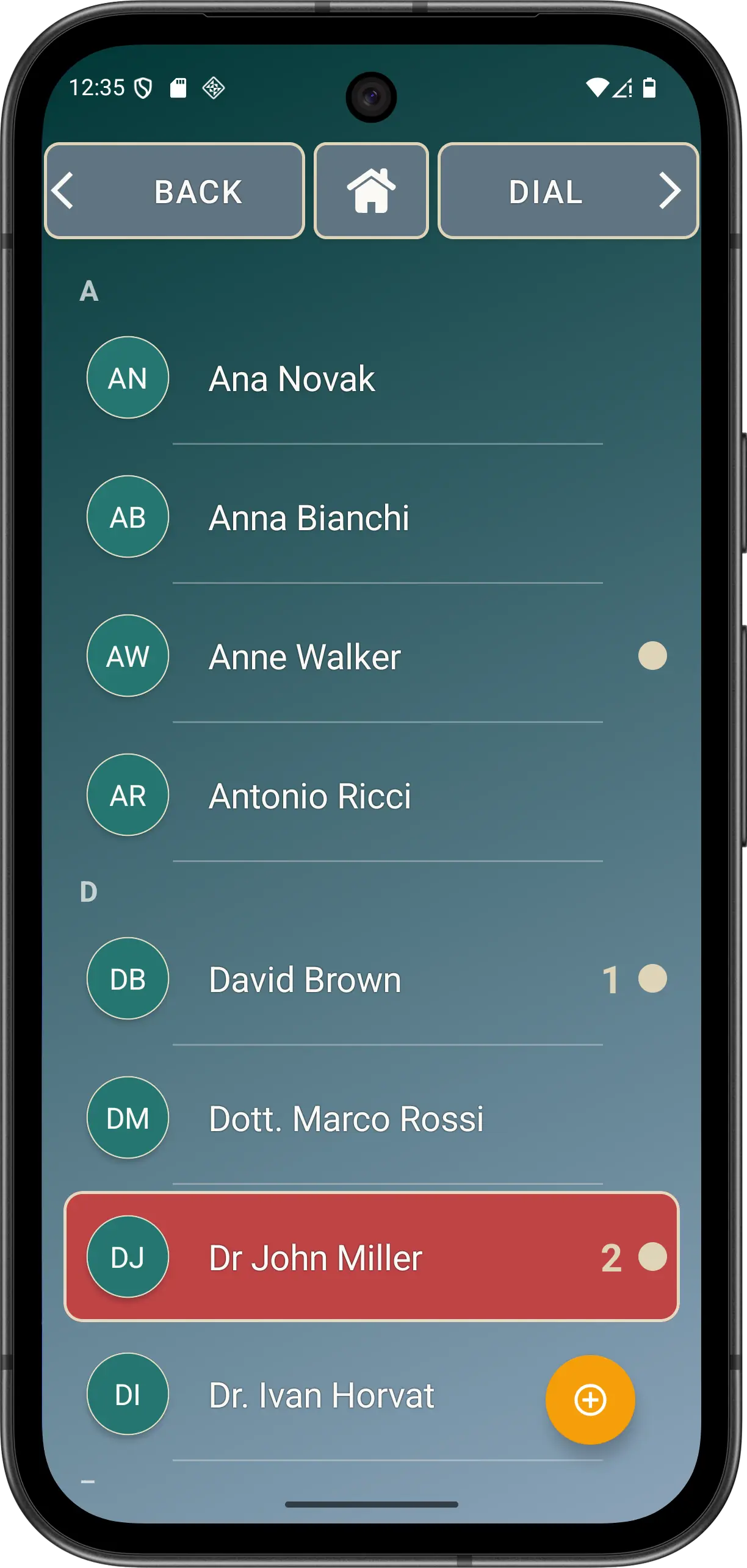
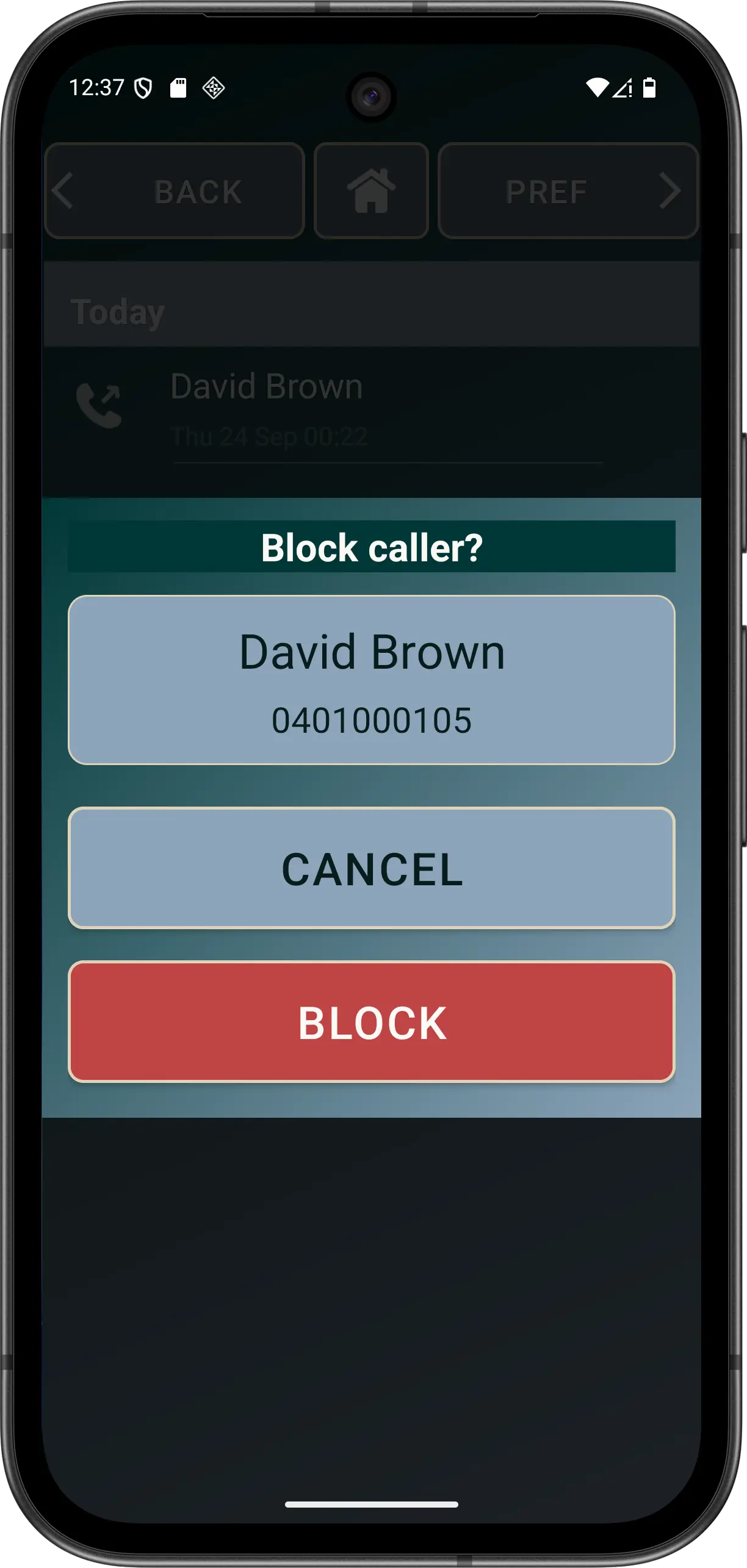
Block or unblock a number
- Open Elder Dialler's call history in Normal Mode.
- Check the exact number. Make sure the entry is the caller you intend to change.
- Press and hold the history entry.
- Choose Block or Unblock. The available action reflects the current state.
- Review later attempts in Elder Dialler history. Rejected calls can retain the applicable blocking or filtering reason when known.
Protected contacts: a contact configured for SOS or emergency use cannot be blocked. Do not use an exclamation mark in a contact name as the current public setup method; use the app's configured SOS/emergency assignment.
How Safe Call Mode differs
Explicit blocking targets a specific incoming number. Advanced Safe Call Mode instead permits matched Contacts and rejects unmatched, invalid or private incoming numbers when usable Contacts access is available.
If Contacts permission or usable contact data is unavailable, Safe Call Mode fails open rather than rejecting every caller. It can still miss spoofed calls and can reject a legitimate caller whose number has not been saved.