Use contacts
Browse locale-sorted phone-number rows, reveal search, call, view details or open Android Contacts to add or edit.
ContactsNormal Mode keeps calling tools and editing paths available for contacts, speed dials, history, blocking and preferences.
Available actions
Use Normal Mode for setup-style actions before returning the phone to Elder Mode when required.
Browse locale-sorted phone-number rows, reveal search, call, view details or open Android Contacts to add or edit.
ContactsEnter or paste a valid number when Dial Pad is enabled. External telephone links prefill but never call automatically.
Dial PadCheck Elder Dialler's private incoming, outgoing, missed and rejected-call records with locale-aware date groups.
Call historyBlock or unblock a specific incoming number where the SOS/emergency protection rule permits it.
Configure blockingUse long-press assignment controls and Show + for empty speed dials. CLEAR removes the slot assignment without deleting the contact.
Speed dials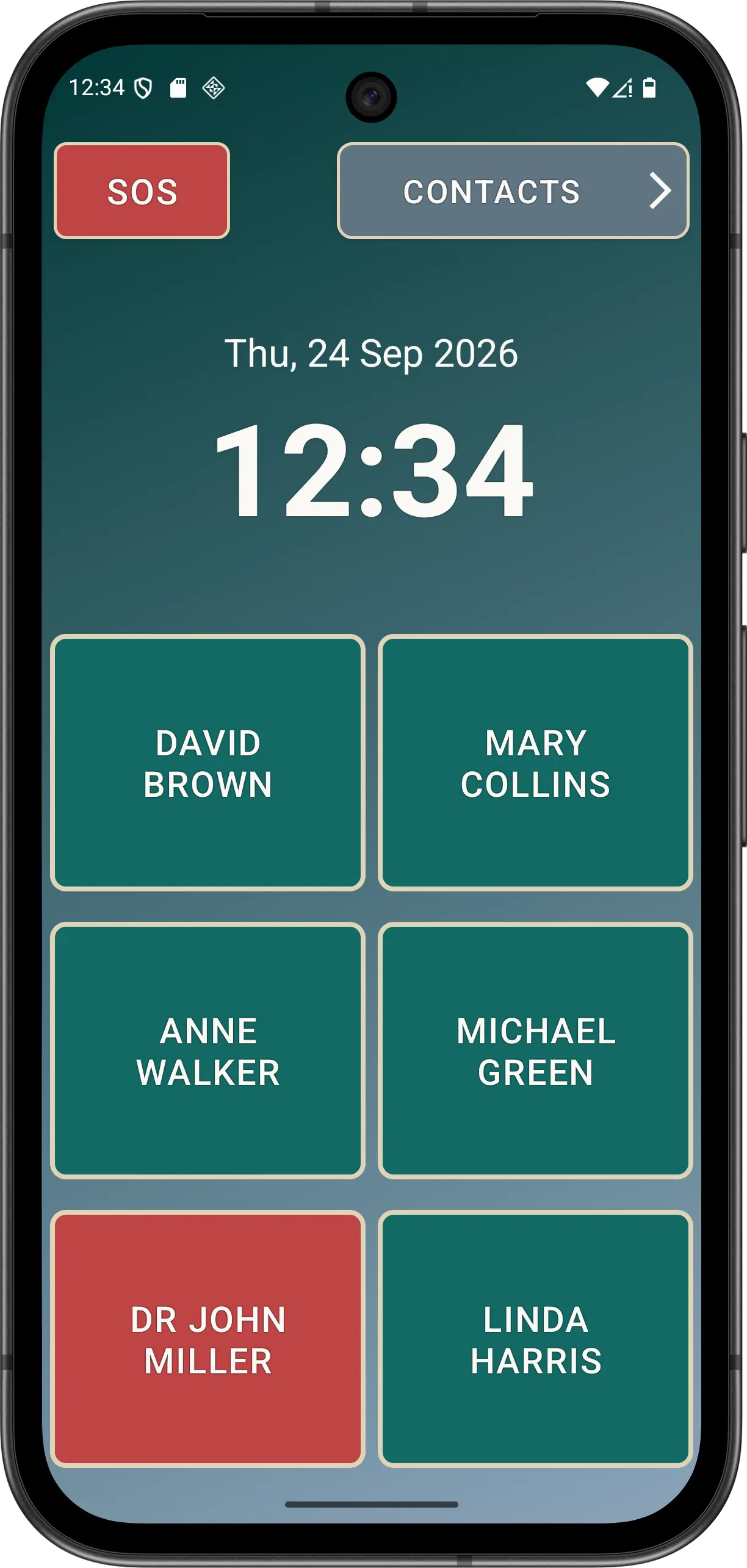
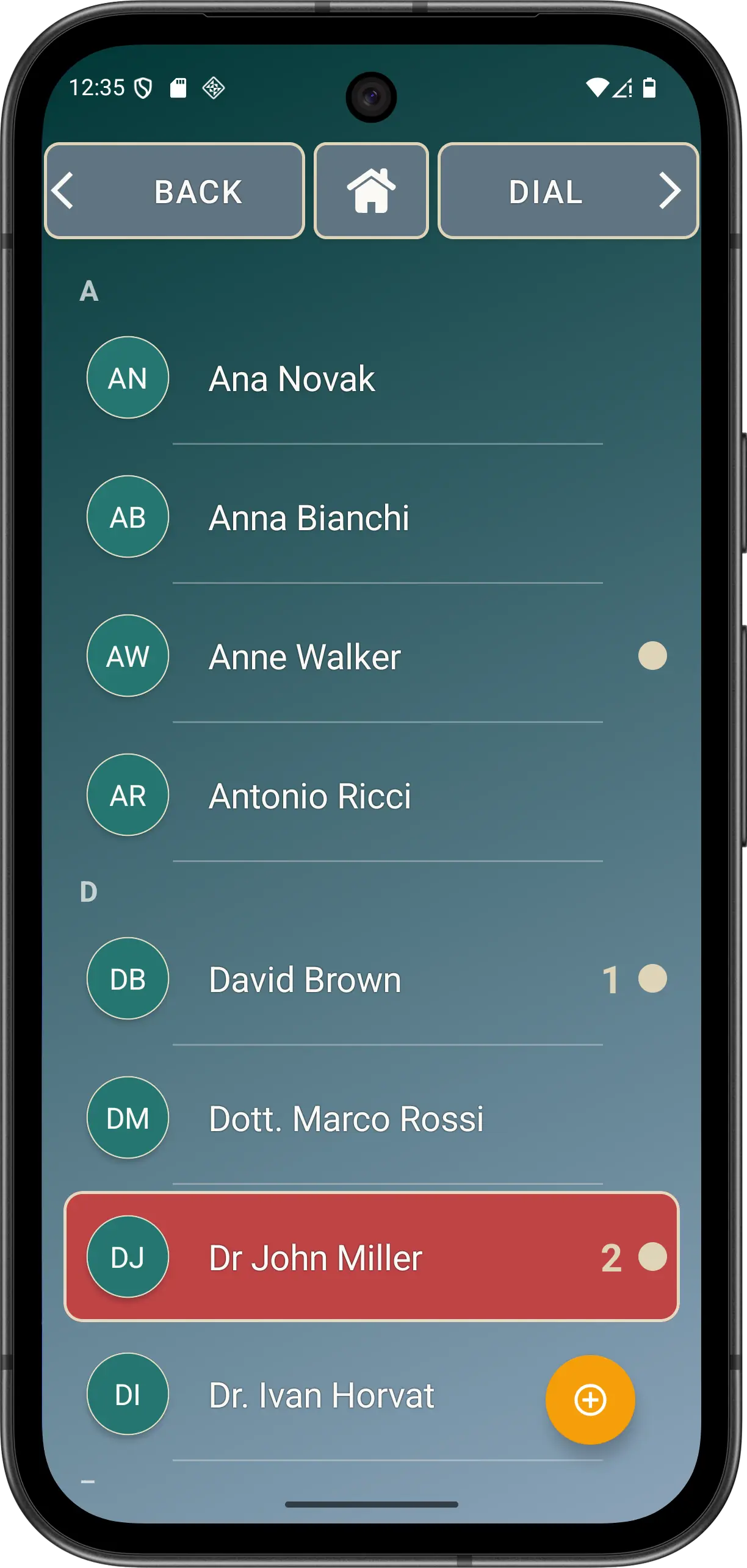
Shared single- or multi-digit missed-call badges can appear on Main, Contacts and Dial Pad navigation without obscuring their labels or arrows. An assigned speed dial can also show a per-number missed-call marker.